

Absolute paths
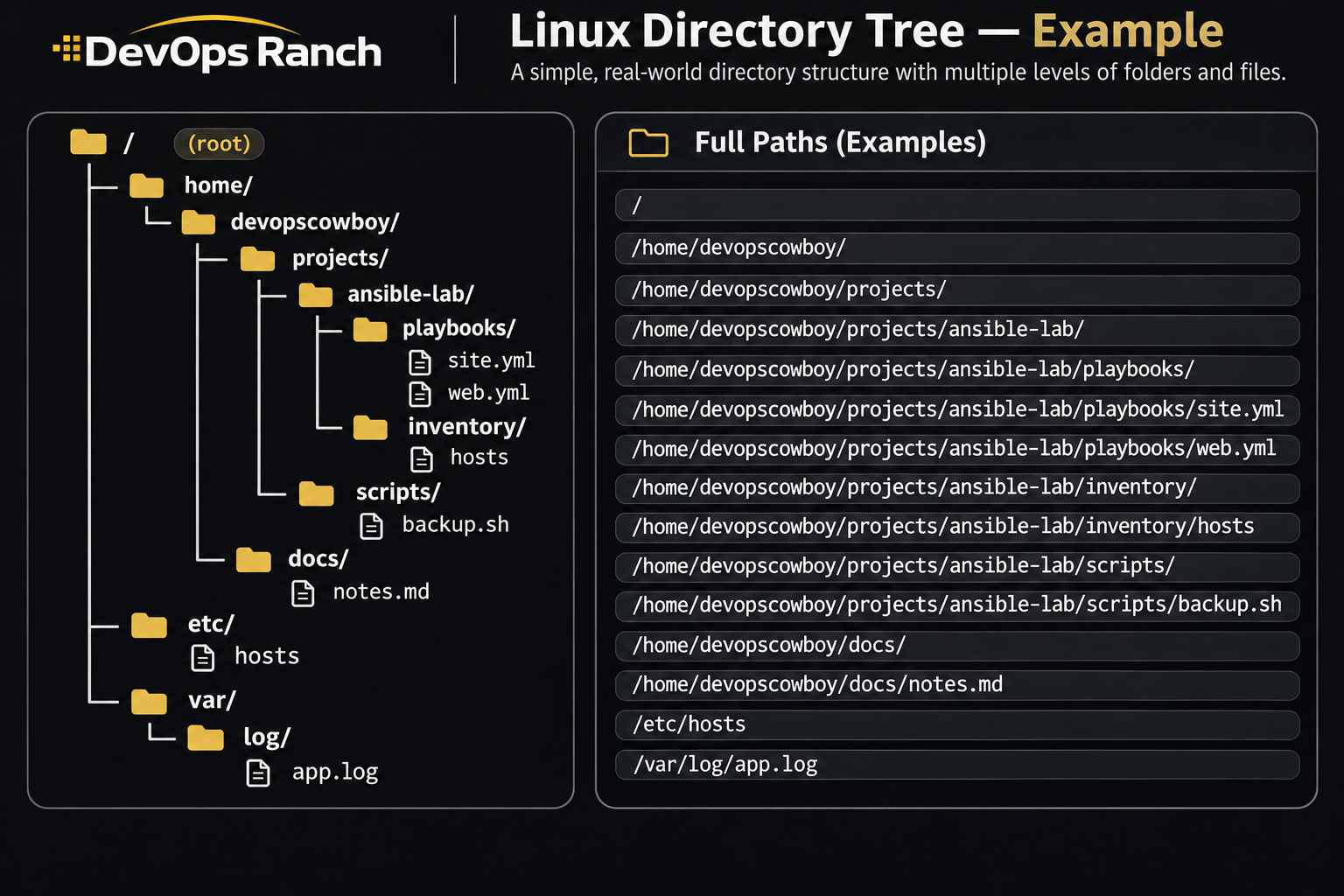
An absolute path starts with /. That slash is the root, the top of the filesystem, and the path lists every directory from there down to the file. It names the same place no matter which directory you are in.
A relative path has no leading /. It starts from the directory you are in now, the one pwd prints.
Lab 02 · Basics
Lab: A shell prompt and the first commands
On a RHEL VM, use whoami, pwd, ls, and cd without guessing which directory you are in.
On this page
Do this on your own RHEL virtual machine, as a normal user. Use your username anywhere the example says devopscowboy. Stay in the shell. The $ on your screen is the prompt. Do not type it.
This lab practices the commands from A shell prompt and the first commands. Paths work the way the filesystem lesson describes.
The task
- Print the user the shell is running as.
- Print the absolute path of the current directory before you move.
- Long-list
/tmp. Find a line that starts withd. That character is how you know the name is a directory. Say the name out loud or write it down. - Change into
/tmpwith an absolute path. Print the working directory. - Without leaving
/tmp, list the hidden names in your home directory. - Go up one directory with a relative path. Print the working directory. From
/tmp, up one is/. - Go to your home directory using
~. Then runcd -and print the working directory. You should be back on/, because that was the previous directory. - From
/, go home by runningcdwith no path. Long-list that directory. Do not add-h. Sizes stay in bytes.
Check your work
Run this after step 8. You should be in your home directory.
whoami
pwd
ls -ld /tmp / /home
A correct result looks like this:
whoamiprints your username, notroot, unless you logged in as root on purpose.pwdis/home/plus that username.ls -ld /tmpstarts withd.ls -ld /starts withdand the name is/.ls -ld /homestarts withd.- None of the
lscommands in the lab used-h.
If step 7 left you somewhere else, cd - returned to whatever directory you were in before cd ~. Repeat step 6 so the previous directory is /, then do step 7 again.
Solution
Who you are, and where you are before any cd.
whoami
pwd
Long-list /tmp and read the first character. d is a directory. Then go there with an absolute path.
ls -l /tmp
cd /tmp
pwd
pwd prints /tmp.
Hidden names in home, while you are still in /tmp. ~ is your home, so this path does not depend on the working directory.
ls -a ~
You should see . and .., and names such as .bashrc.
Up one level. The path .. is relative.
cd ..
pwd
pwd prints /.
Home, then back to the previous directory, which is /.
cd ~
cd -
pwd
cd - prints / and pwd prints /.
Go home again and long-list it. No -h.
cd
ls -l
The check:
whoami
pwd
ls -ld /tmp / /home