

Absolute paths
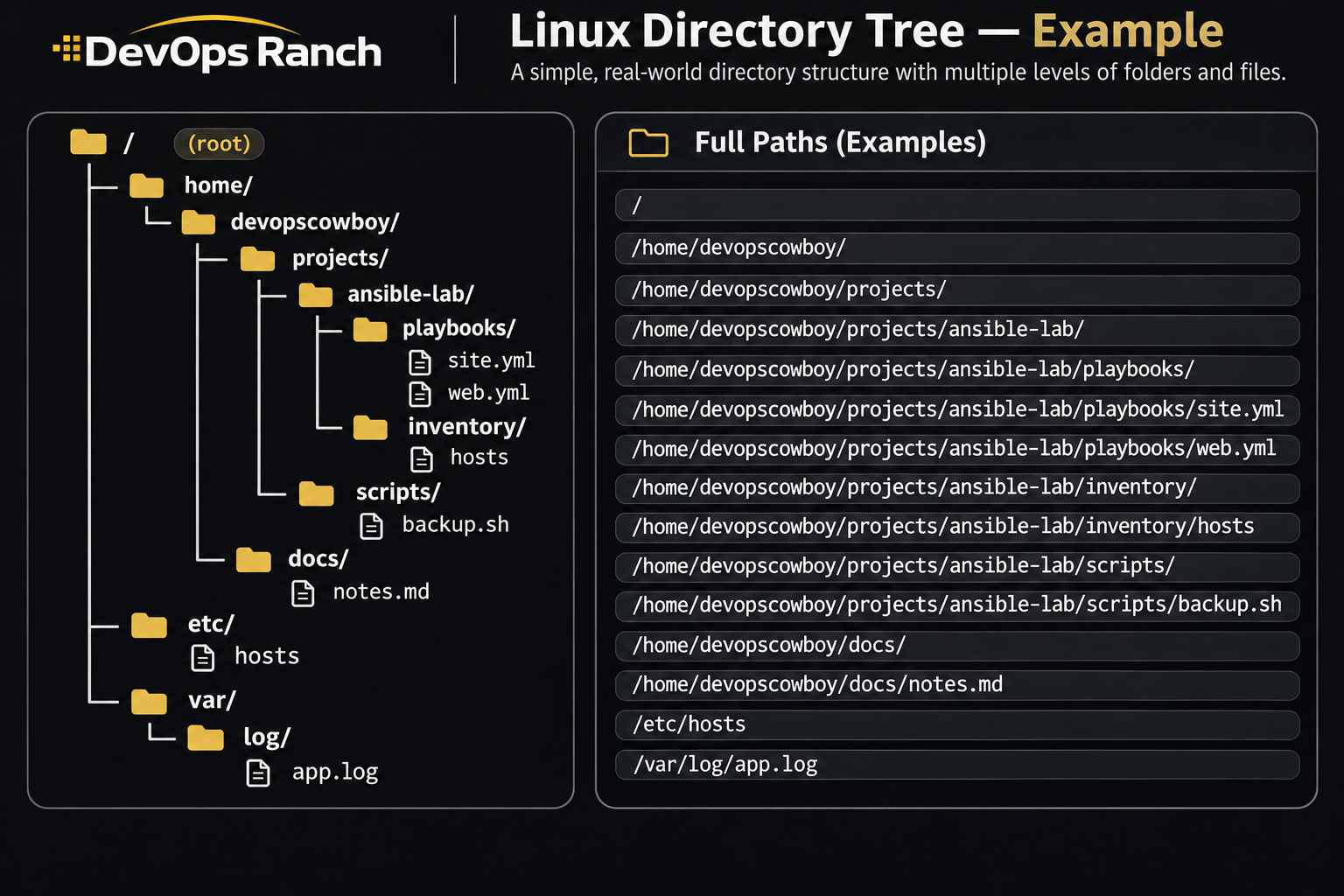
An absolute path starts with /. That slash is the root, the top of the filesystem, and the path lists every directory from there down to the file. It names the same place no matter which directory you are in.
A relative path has no leading /. It starts from the directory you are in now, the one pwd prints.
Lesson 02 · Basics
A shell prompt and the first commands
Who you are, where you are, and how to move, using the commands the exam expects you to type without looking them up.
On this page
This is the first real conversation with a RHEL host: a prompt, then a command. The paths those commands use are the previous lesson, The filesystem and absolute paths. The commands are the same on RHEL 7, 8, 9, and 10.
The $ in an explanation is the shell prompt. Do not type it. The blocks below omit it so a copied line is only the command.
The examples use the account devopscowboy. Use your own username in a path.
The short list is the Getting Around cheat sheet.
The prompt
When you open a terminal you get a prompt, then a cursor. A typical RHEL prompt names the user, the host, and the current directory, and ends in $ for a normal user or # for root.
You type a command after the prompt and press Enter. The command is one program name, then its options, then its arguments, separated by spaces.
ls -l /tmp
ls is the command. -l is an option (a flag). /tmp is the argument, the thing the command acts on. Options usually start with -. A path that starts with / is an argument, not an option.
The shell splits what you type on spaces. A path with a space in it has to be quoted, or the shell thinks it is two arguments. The paths in these lessons have no spaces.
Who you are
whoami prints the effective user name, the account this shell is running as. Use it when you open a terminal, and again after you switch accounts.
whoami
id prints the numeric user id, the primary group, and every supplementary group. whoami is the name. id is the rest of the identity.
id
sudo whoami runs that one command as root, so it prints root when sudo is allowed. Your prompt is still your user afterward. Becoming another user for a whole shell is a later lesson. This is only the check that sudo ran the command as root.
sudo whoami
whoami
Where you are
pwd prints the absolute path of the current working directory. “Working directory” means the directory a relative path starts from. If you are lost, or you are about to delete something, run pwd first.
pwd
On RHEL, an ordinary user’s home is /home/ plus the username. For the example account that is /home/devopscowboy. The root user’s home is /root, which is not /.
cat /etc/os-release prints the operating system name and version. Use it when you want to know whether the host is RHEL 8, 9, or 10 before you pick a command that differs.
cat /etc/os-release
What is in the directory
ls lists the names in a directory. With no path, it lists the directory you are in.
ls
ls -l is the long list. Permissions, owner, group, size in bytes, the date, and the name. A directory’s line starts with d. That is how you know the name is a directory before you cd into it or delete it.
ls -l /tmp
Look at the first character of a line. d means directory. - means an ordinary file. You do not need a graphical file manager to tell them apart.
ls -a includes hidden names, the ones that start with a dot, such as .bashrc. ls without -a hides them. . and .. show up in the -a list: the directory itself, and its parent.
ls -a
Leave -h off. The long list then shows sizes in bytes, which is the form to read while you are learning. ls -l and ls -a are the two flags to reach for.
Change directory
cd is followed by a directory name. cd /tmp uses an absolute path, so it works from anywhere.
cd /tmp
pwd
A path with no leading / is relative. cd projects works only when projects is in the directory pwd just printed. If it is not, the shell says there is no such file or directory. It does not go looking at / for you.
cd /home/devopscowboy
cd projects
If projects does not exist yet, that second command fails. Creating directories is a later lesson. The failure is the shell telling you the relative path did not match a name here.
cd .. goes up one directory. From /tmp, .. is /.
cd /tmp
cd ..
pwd
~ is short for your home directory. cd ~ goes there. cd with no path at all also goes home.
cd ~
pwd
cd /tmp
cd
pwd
Both pwd lines should print your home, /home/ plus your username.
cd - returns to the previous directory. It is the one to use when you jumped to /etc to check a file and want to come back.
cd /etc
cd -
pwd
A command has to be real
The shell only runs a program it can find, usually under /usr/bin. If the name is misspelled, the message is command not found. That is a missing program, not a missing file. A missing file sounds like No such file or directory, and it means the path you gave does not exist.
Options come before the path when you are starting out: ls -l /tmp, not ls /tmp -l. Both often work. The first form is the one to practice.
man ls opens the manual page when you want every flag. q quits. That habit has its own lesson. For this one, ls, pwd, cd, and whoami are enough to move around a host on purpose.
Do this on a RHEL virtual machine in the lab before you go on. The exam will not give you a file manager.