

Absolute paths
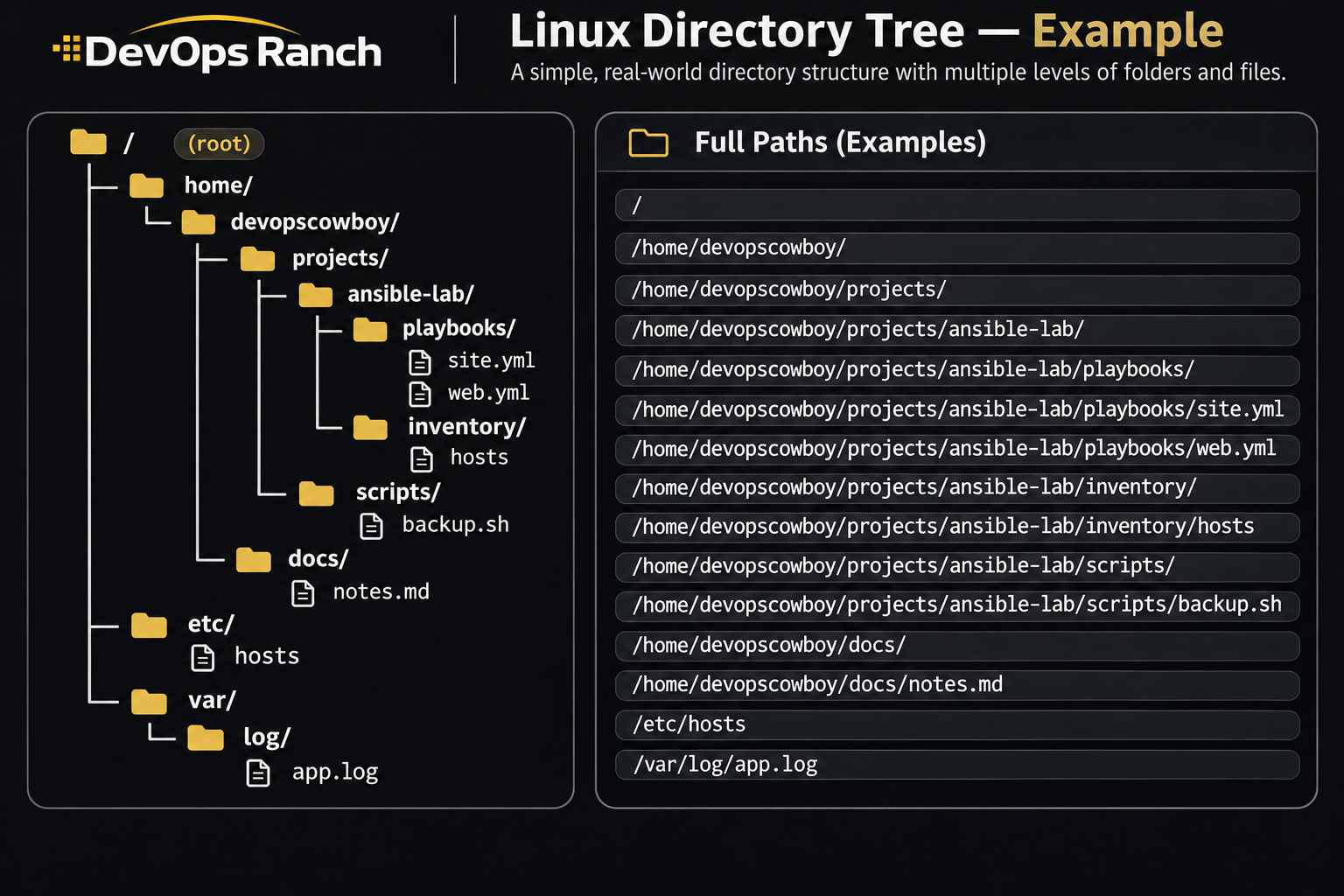
An absolute path starts with /. That slash is the root, the top of the filesystem, and the path lists every directory from there down to the file. It names the same place no matter which directory you are in.
A relative path has no leading /. It starts from the directory you are in now, the one pwd prints.
Cheat sheet
Getting Around
Who you are, where you are, and how a path is built on a RHEL host.
On this page
Getting started
Taught from zero in The filesystem and absolute paths and A shell prompt and the first commands.
These are the commands to learn first on a RHEL host: who you are, where you are, and how to move around. The $ in front of an example is the shell prompt. Do not type it.
whoami - Prints the effective user name, the account this shell is running as. Use it when you open a terminal and want to confirm who you are, or after you switch accounts. sudo whoami prints root, because sudo runs that one command as the administrator.
whoami
pwd - Prints the absolute path of the current working directory. Use it when you are lost, and before you copy or delete anything, so you know which directory the next command will touch.
pwd
ls - Lists directory contents. Use it to see what is in a folder before you change into it or delete it. -l is the long list: permissions, owner, size in bytes, and date. A directory’s long listing starts with d, which is how you know a name is a directory, as in ls -l /tmp. -a includes hidden names, the ones that start with a dot, such as .bashrc.
ls
ls -l
ls -a
ls -l /tmp
cd - Changes the directory. cd is preceded by a directory name, as in cd /tmp. A path that starts with / is absolute: it means the same place no matter where you are. A path with no leading / is relative: it starts from the directory you are in now, so cd projects only works when projects is here. cd .. goes up one directory. cd ~ goes to your home directory, which on RHEL is /home/ plus your username. ~ is short for that path. cd - returns to the previous directory. cd with no path also goes home.
cd /tmp
cd projects
cd ..
cd ~
cd -
man - Opens the manual page for a command. Use it when you need every flag and the real meaning, not a guess. q quits, and /word searches inside the page. A number in front picks a section of the manual: man 5 passwd is the file format, and man passwd is the command.
man ls
--help - Add this to almost any command to print a short flag list and exit. Use it when you remember the command and only need a reminder of the options. man is the longer page for the same command.
ls --help
Understanding the directory structure
A path is the address of a file. The picture is one home directory on a Linux host, plus /etc and /var. The panel on the right lists the full path of every directory and file in the tree.
An absolute path starts with / and lists every directory from the root down to the file. It means the same place no matter which directory you are in. In the picture, the playbook is:
/home/devopscowboy/projects/ansible-lab/playbooks/site.yml
/ by itself is the root directory, the top of the tree. Every absolute path begins there. It is not the root user’s home. That home is /root, one level down.
A relative path does not start with /. It starts from the directory pwd prints. If you are in /home/devopscowboy/projects/ansible-lab, that same playbook is playbooks/site.yml, and cd playbooks moves into the folder that holds site.yml and web.yml. cd .. from there moves back up to ansible-lab. /etc/hosts and /var/log/app.log are absolute too. cd /etc reaches the hosts file’s directory from anywhere, because that path starts at the root instead of at your current folder.
These are the directories at the top of a RHEL system. The names are the same on almost every host.
| Path | What it is |
|---|---|
/ |
The root of the filesystem. Every other directory is inside this one. |
/home |
Home directories for ordinary users, such as /home/devopscowboy. |
/root |
Home directory of the root user. Not the same directory as /. |
/etc |
Host configuration. /etc/hosts and /etc/fstab are here. |
/var |
Data that changes while the system runs: logs, caches, and spools. |
/var/log |
Log files. On RHEL, system messages go to /var/log/messages, and SSH and sudo go to /var/log/secure. |
/tmp |
Scratch space. Anyone can create a file; the sticky bit means you can delete only your own. RHEL removes files here that have not been used for 10 days. |
/usr |
Installed programs and the files they share. Most commands you type live in /usr/bin. |
/bin and /sbin |
Essential commands. On RHEL 7, 8, and 9, /bin and /sbin are links to /usr/bin and /usr/sbin. /sbin holds the administration commands. |
/opt |
Add-on applications that are not part of the base system, usually one directory per product. |
/dev |
Device files. A disk shows up as a name like /dev/sda, and a terminal as /dev/tty. |
/proc |
Live kernel and process information, such as /proc/cpuinfo. Nothing here is stored on disk. |
/boot |
Files the host needs in order to boot: the kernel and the GRUB bootloader. |
/mnt and /media |
Places to attach another disk. Use /mnt for a mount you make by hand. A USB drive on RHEL usually appears under /run/media. |
Where you are
pwd
ls -l
ls -a
cd -
whoami
id
cat /etc/os-release
ls -l is the long list. ls -a includes dotfiles. cd - returns to the previous directory. id shows the uid, the primary group, and every supplementary group.
Find it yourself
man -k partition
man 5 crontab
man 8 firewall-cmd
ls /usr/share/doc
systemctl --help
man -k searches page titles and summaries. Section 1 is user commands, section 5 is file formats (man 5 crontab, man 5 fstab, man 5 sudoers), and section 8 is administration commands. /usr/share/doc is the documentation installed with packages. Any command’s --help is the short flag list.
Red Hat exams allow the product documentation on the system and disallow personal notes.
man -k,man 5, and/usr/share/docare the habit those exams grade.